Quick start with Claude
The fastest way to drive Axonaut in plain language. Allow 3 to 5 minutes.
What you will get
At the end of this guide, you can open a Claude conversation and type:
"List the last 5 unpaid invoices on my Axonaut account."
… and Claude answers with the real data from your account, without you pasting an API key or opening a spreadsheet.
Prerequisites
- An active Axonaut account (axonaut.com)
- Your Axonaut API key: how to get it (French, 30 seconds)
- A Claude account: Free is enough to try it, Pro/Team recommended for real use (claude.ai)
Step 1 — Add the Axonaut connector to Claude
- Open claude.ai and sign in.
- Click your avatar at the bottom left → Settings → Connectors.
- Click Add custom connector.
- Fill in:
| Field | Value |
|---|---|
| Name | Axonaut |
| Remote MCP server URL | https://mcp.axonaut.com/mcp |
| Advanced settings | leave empty |
- Click Add.
Step 2 — Authorize the connection (OAuth)
A pop-up opens and takes you to Auth0, Axonaut's identity provider.
- Create an Auth0 account with your work email (or sign in with Google).
- On your first connection, you are asked for your Axonaut API key: it links your identity to your Axonaut account. Paste it and confirm.
-
Check that the page shows claude.ai, then click Autoriser (Authorize), or Enregistrer & Connecter (Save & Connect) on your first connection. The pop-up closes and the Axonaut connector shows as Connected.
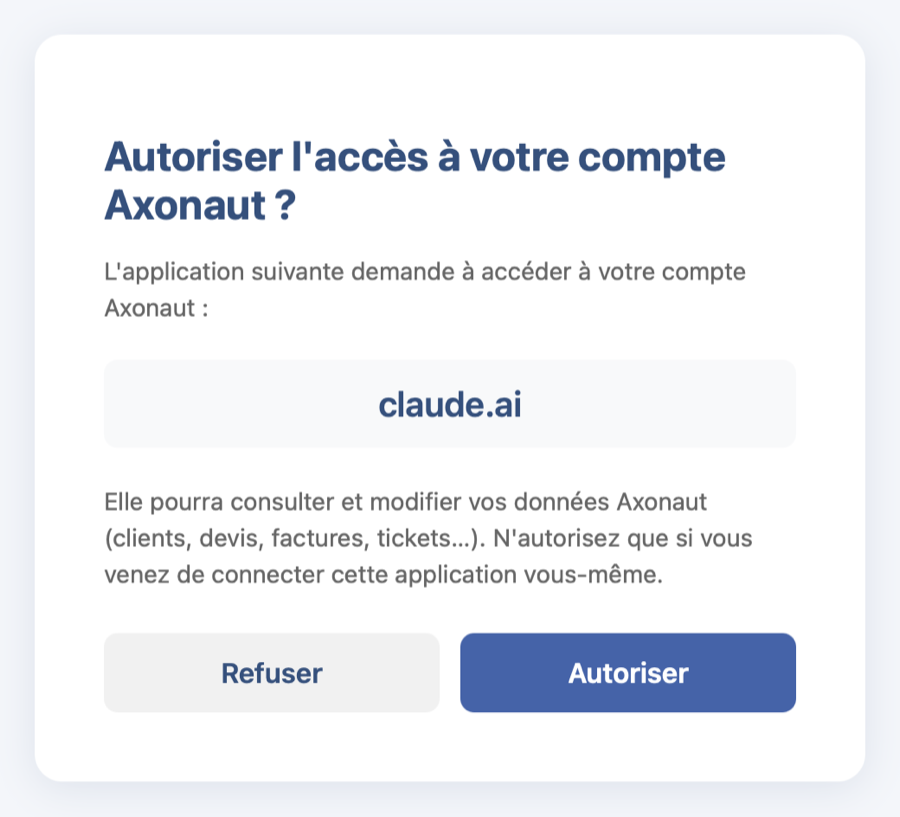
Always check the domain shown
If a domain other than your AI client's appears while you are not connecting it yourself, click Refuser (Deny): someone may be trying to access your Axonaut account.
You only do this once
Once your API key is saved, all your future Claude/ChatGPT connections find it automatically. You won't have to paste it again.
Step 3 — Use the connector in a conversation
- Start a new Claude conversation.
- Below the input box, click 📎 (paperclip) → tick Axonaut.
- Type your first question, for example:
"How many invoices did I create this month?"
Claude will:
- Pick the relevant
list_invoicestool. - Ask for your confirmation (showing the arguments it will send).
- Call the Axonaut API with your key.
- Answer with your real data.
You're live.
Examples for your first session
Once connected, try these prompts:
Read (no risk, nothing changes):
- "Find the last 10 companies created in Axonaut."
- "Which open opportunities are worth more than €5,000?"
- "Summarise the open tickets with high or urgent priority."
- "List the unpaid invoices issued more than 30 days ago."
Write (Claude asks for confirmation):
- "Create a 'normal' priority ticket on the company Acme SA: 'MCP integration test'."
- "Add a 'meeting' event on the Cloud Migration opportunity for Friday at 2pm."
- "Mark opportunity #4521 as won."
Claude always shows you the arguments before calling a write tool. You can always refuse or edit them.
Going further (guides in French)
- Full Claude guide (Web + Desktop): projects, advanced filters.
- Connect ChatGPT: same experience on ChatGPT Plus/Team/Enterprise.
- Catalogue of the 96 tools: everything Claude can do in your account.
- Getting your API key: if you don't have it yet.
Prefer no-code automation?
If your need is not conversational (you want to trigger Axonaut actions from a web form, an incoming email or a Slack webhook), use instead:
Authentication is different there: you paste your API key directly as a Bearer token in the MCP module, without OAuth.
Quick troubleshooting
\"Couldn't register with the login service\"
Your browser blocks the OAuth pop-up. Allow pop-ups for claude.ai, temporarily disable AdBlock/uBlock, and try again.
The connector is active but no tool shows up
You didn't tick it in the conversation: 📎 icon below the input box → tick Axonaut → send your message again.
I clicked \"Refuser\" (Deny) by mistake
Nothing was shared. Just reconnect: Settings → Connectors → Axonaut → Connect.
\"401 Unauthorized\" on calls
Your OAuth session expired or your API key was regenerated. Go to Settings → Connectors → Axonaut → Reconnect.
More solutions: see the "Dépannage" (Troubleshooting) section of the full Claude guide.
Need help?
📧 Support: support@axonaut.com 📚 MCP documentation: modelcontextprotocol.io